

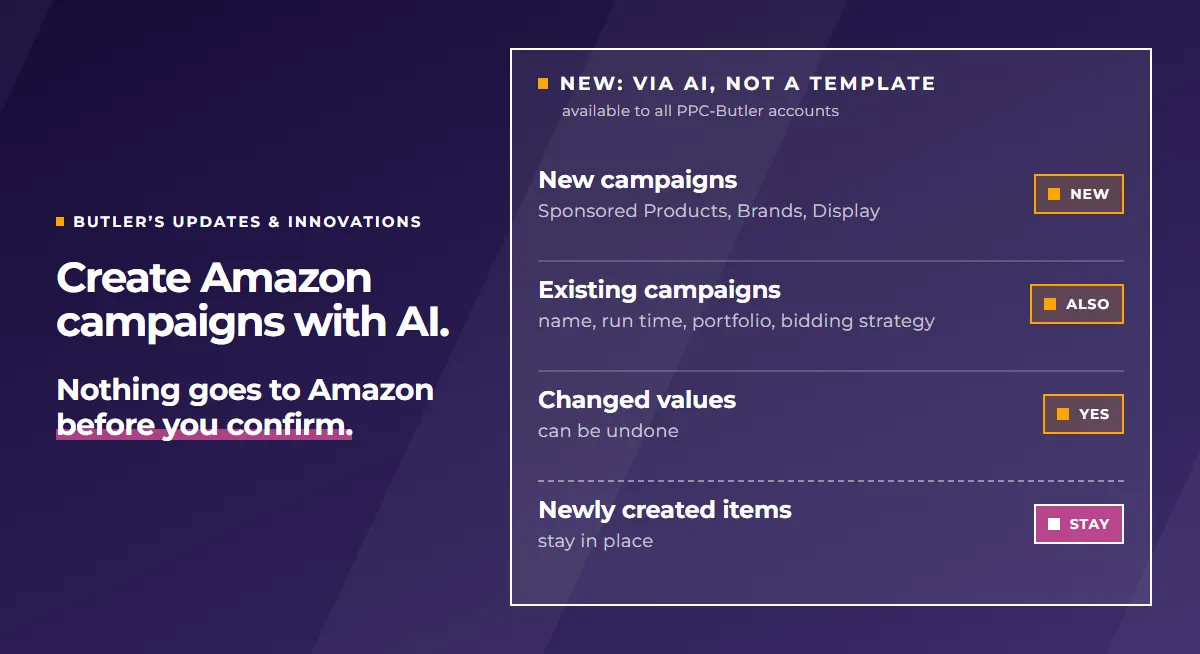
In PPC-Butler you can now create new Amazon campaigns in an AI chat. You describe the campaign you want in your AI, such as Claude. The Butler turns it into a job. You review it in the change list and confirm it yourself. This is available to all accounts.
The link between your AI and PPC-Butler is the MCP. That stands for Model Context Protocol. The PPC-Butler MCP connects your AI assistant, such as Claude or ChatGPT, to your PPC-Butler account. How to set up the connection is explained on the PPC-Butler MCP page.
What is new?
What is new is that you create a campaign through your AI instead of a prepared template. This works with Claude or with another AI assistant such as ChatGPT, Copilot or Gemini. It applies to Sponsored Products, Sponsored Brands and Sponsored Display.
In the chat you also name the parts of the campaign. Your AI creates them as a job:
- ad groups
- ads
- keywords or product targets
- negative keywords in the ad group, meaning search terms where the ads of this ad group should not appear
An example with made-up values: you sell leather gloves for adults and add “kids” as a negative keyword. Then your ad does not appear for the search “kids gloves”.
Amazon does not support keywords in Sponsored Display campaigns. PPC-Butler marks such keywords as failed right away and gives a clear reason.
Campaign templates are still available in PPC-Butler. There you prepare a structure once and roll it out with a preview. For structures that are always the same, templates remain the better way.
Name, run time, bidding strategy: what you can now also change in running campaigns via AI
For existing campaigns, the MCP now lets you change more than bids, budgets and status:
- Campaigns of all ad types: name, start and end date, portfolio and bidding strategy. You can also remove an end date. For Sponsored Products, Off-Amazon is included too, meaning delivery outside Amazon.
- Ad groups: name, status and default bid.
- Sponsored Brands ads: the name of the ad.
- Portfolios: name. You can also remove a portfolio’s budget entirely, so the portfolio no longer has a spending cap.
What can you undo after you confirm?
After you confirm, changed values can be undone, newly created items cannot. Every campaign and every change made through the MCP first goes into the change list as a job. There you see what is about to happen. Nothing goes to Amazon before you confirm.
The two cases look like this:
- Changed values can be undone, such as a new name or a new bidding strategy.
- Newly created items stay in place. Undo does not remove a new campaign.
There are two ways to reset changed values. You undo a completed job by hand right away. For later, you schedule the automatic undo.
Both work for changed values only, because undo puts an old value back. A new campaign has no old value, it did not exist before. Taking it back would mean deleting it. If you change the new campaign later, such as its bidding strategy, that is a normal change. You can undo that change like any other.
At the top of a job’s change list you see “Automatic undo”. Next to it, the “Schedule” button opens a dialog of its own. There you choose 1 hour, 4 hours, 1 day or 7 days. You can also set your own duration or an exact time. You see right away when the undo will run.
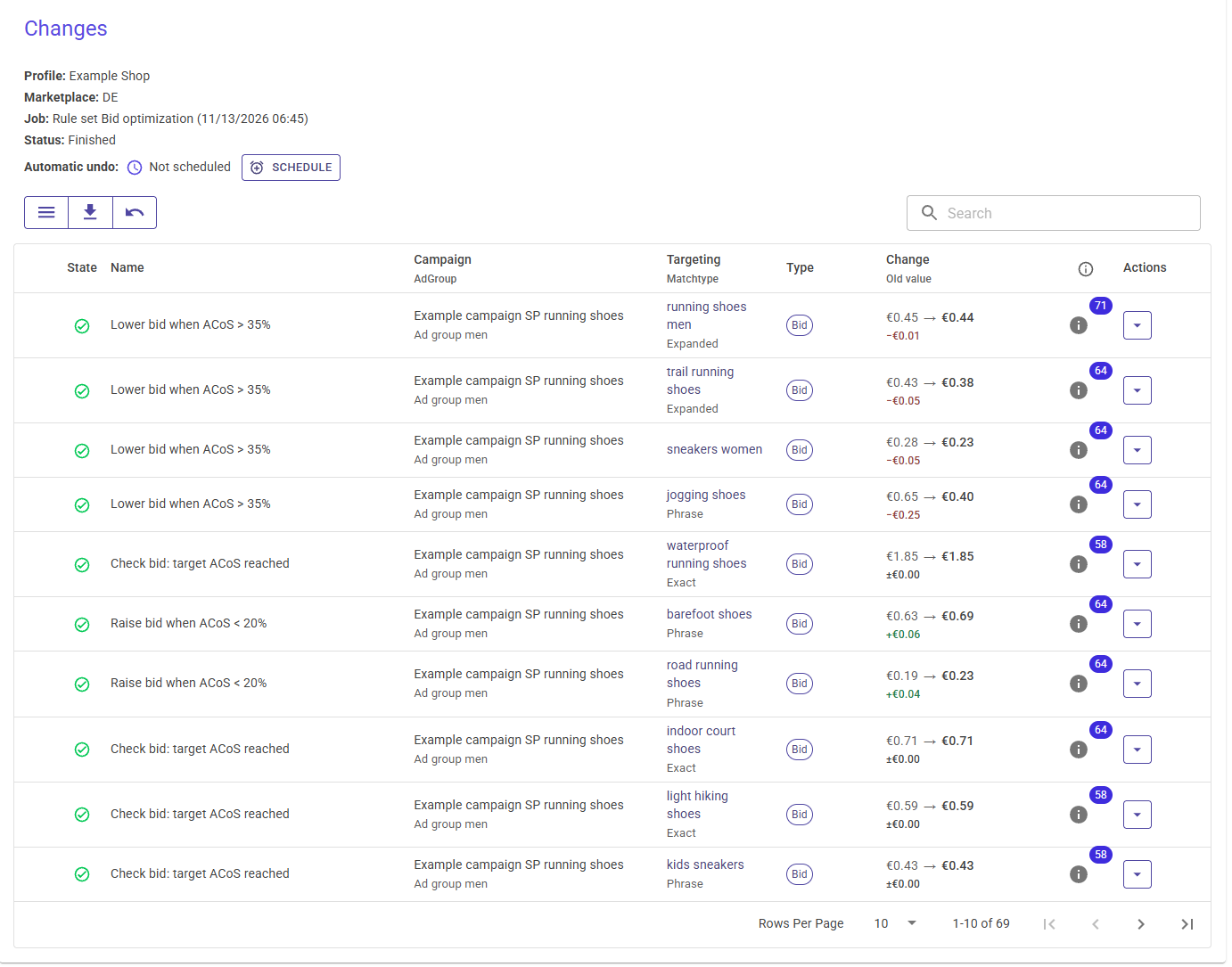
The change list of a job in the example account: old and new value, the difference below. At the top you see “Automatic undo” with the “Schedule” button. The image shows bid changes from a workflow, not a new campaign. The names and values in the image are examples.
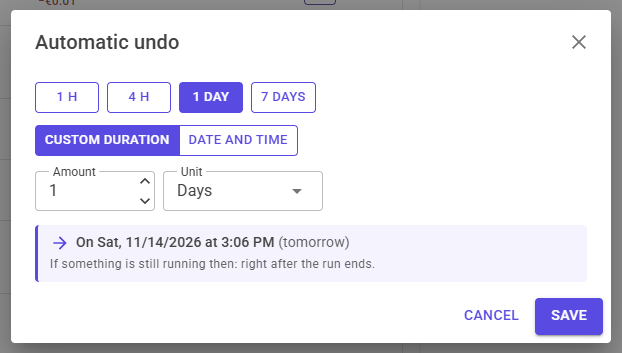
The “Automatic undo” dialog: quick options, your own duration or an exact time.
When Amazon rejects something
If Amazon rejects single parts after you confirm, the “Only Errors” filter shows you what was not applied. With “Retry” you send the job again. It sends what has not been applied yet or failed only temporarily. Fix what Amazon rejected on content first, otherwise sending it again changes nothing.
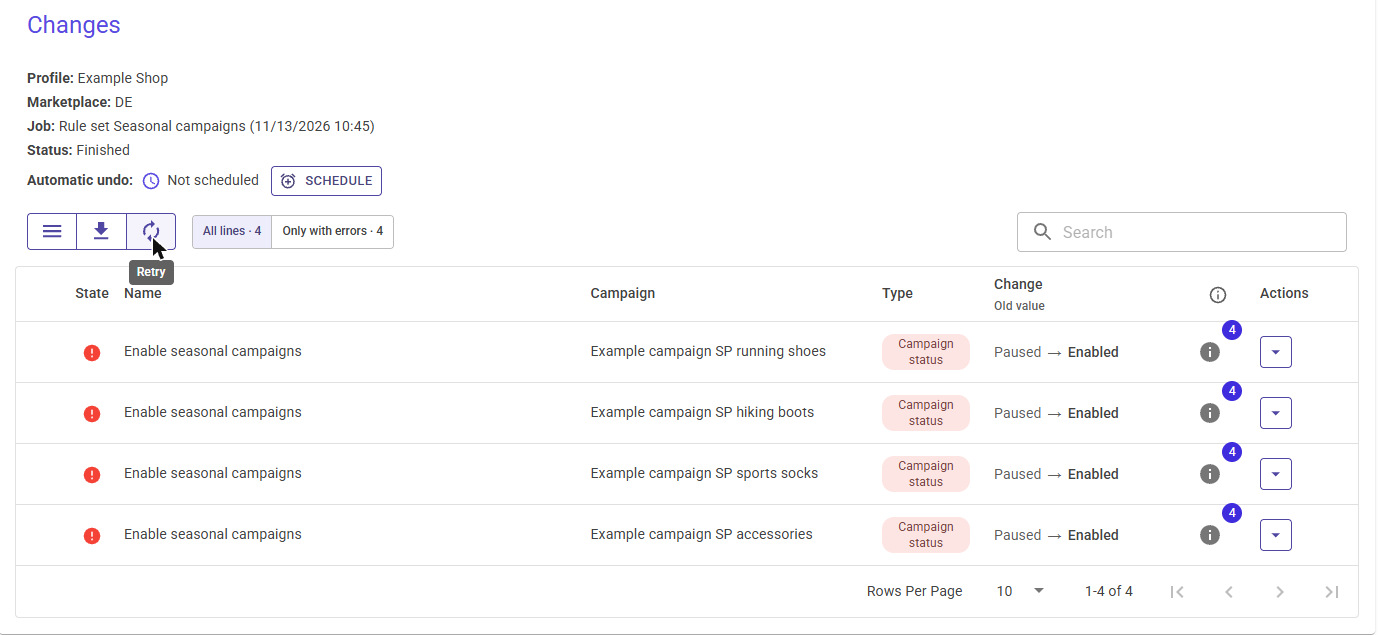
A job with errors in the example account: “Only Errors” shows what was not applied, “Retry” sends the job again. The image shows status changes, not a new campaign.
What this means for sellers, vendors and agencies
Sellers and vendors create new campaigns in the chat, agencies and freelancers change many names, run times or portfolios in one job. Each job applies to one advertising profile. For several client accounts, your AI creates a separate job per account.
Two steps before you confirm your first campaign via AI
- Check a new campaign carefully: go through every line of the job before you confirm. What you create stays in place. If a wrong keyword is in the campaign after launch, there are two ways. You switch it off by hand in PPC-Butler. The second way: you tell your AI the keyword and the campaign. You ask it for a job that switches this keyword off. You see this job in the change list first, too.
- Pick the right way: use templates for recurring structures and the chat for a single campaign.
How to create a campaign via AI in PPC-Butler
You describe the campaign in your AI and the Butler turns it into a job. You review it in the change list and confirm it yourself. Your AI prepares. You decide whether the job goes to Amazon.
An example request to your AI, you choose the values:
In my profile for Amazon.com, create a new Sponsored Products campaign for ASIN B0XXXXXXXX. It gets one ad group with one ad for this product. Use these keywords: stainless steel water bottle, 1 liter water bottle, insulated steel bottle. Add “kids” as a negative keyword in this ad group. Create everything as a job, I will review it in the change list.
Then you open the change list. The job is there with every part of the new campaign. You review it and only then confirm.
An example of automatic undo, you choose the duration: you use your AI to create a separate job. It switches off Off-Amazon for a Sponsored Products campaign. In the change list of this job, you click “Schedule” next to “Automatic undo”. As your own duration, you choose 15 days in this example. After 15 days the Butler undoes the change automatically, and Off-Amazon is on again. Then you use the MCP to evaluate how the campaign did in these 15 days.
Further features of this update, such as the clearer change list, are listed in the PPC-Butler updates. What an MCP server for Amazon PPC is in general is explained on the page Amazon Advertising MCP.
Source
- PPC-Butler: Updates, entry of 25 November 2026 “Create entire campaigns in one step and change far more, straight from your AI”
- PPC-Butler: PPC-Butler MCP Server for Amazon PPC